This post is also available in Chinese: 中文版 →
PommeToys is a macOS utility I built to smooth out a few things on the Mac that bothered me every day.
A few of the features
Dock window previews
Hover over an app in the Dock and you get live thumbnails of all its windows, minimized ones included. Click one to go straight to it. If you have used Windows, this is the taskbar hover preview, on the Mac.
⌘Tab window previews
While you hold ⌘Tab, the switcher shows the windows of the selected app above it. Click a thumbnail to go to that window, not just the app.
Smooth scrolling for your mouse
On macOS an external mouse wheel scrolls in steps. Turn this on and the steps become one continuous glide. Speed, glide and direction are adjustable, and the trackpad is left alone.
Shake to focus
Grab the window you are using and shake it, and every other window hides, the same idea as Aero Shake on Windows. There is also a global shortcut that clears every window off the desktop at once.
Keep Awake
While it is on, your Mac will not go to sleep on its own. You can set it for anything from 5 minutes to 8 hours, or leave it on with no limit, and choose whether the display stays on too.
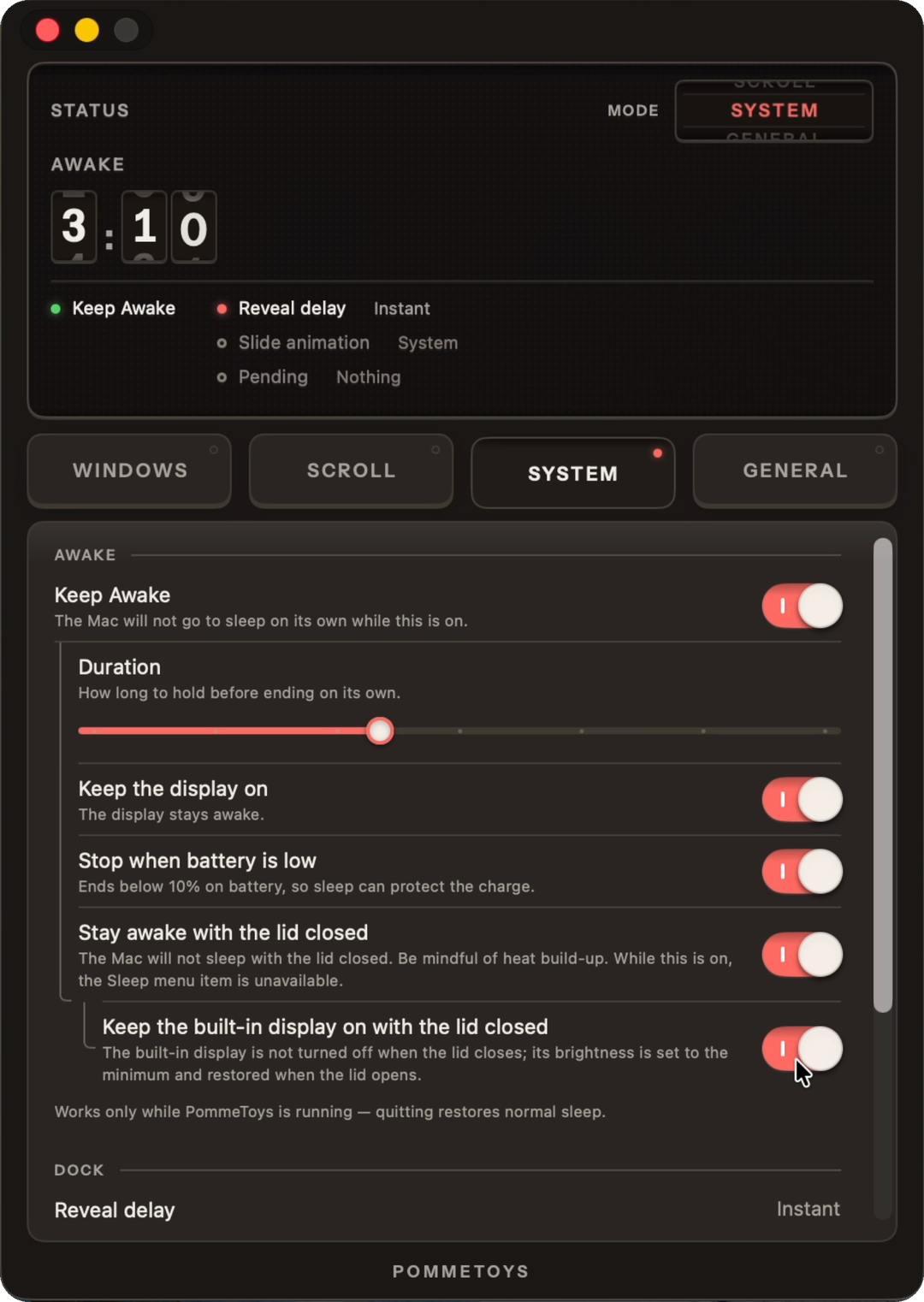
Keep working with the lid closed. Turn on “Stay awake with the lid closed” and the MacBook keeps running after you close the lid, without an external display. Exports, downloads and AI agents like Claude Code or Codex carry on. Add “Keep the built-in display on with the lid closed” and the screen stays on while the lid is shut, dimmed to the lowest brightness to save power, then restored when you open it. Because the display stays on, an AI agent that works from screenshots keeps seeing the screen instead of capturing a black frame.
Control it from your phone with the Mac in your bag. With both options on, you can close the MacBook, put it in your bag on your phone’s hotspot, and keep directing the AI on it from your phone. A bag does not ventilate well, so if the Mac gets too hot, or the battery drops below 10% on battery power, PommeToys stops and lets the Mac sleep again.
Everything else
Adjusting how quickly the hidden Dock appears, minimizing an app by clicking its Dock icon again and the rest are on the full feature list on the website.
Why the settings window is a little machine
Each of these features exists in other apps too, some of them free. Where I spent most of my effort is the settings window.
Most utilities have a settings page you set up once and never open again. I wanted to make the opposite.
The PommeToys settings window is a fixed-size instrument, 540 × 760, and it does not resize. The top half is a dark dot-matrix screen and the bottom half has keys, switches and faders. It borrows from the industrial design of the Dieter Rams era.
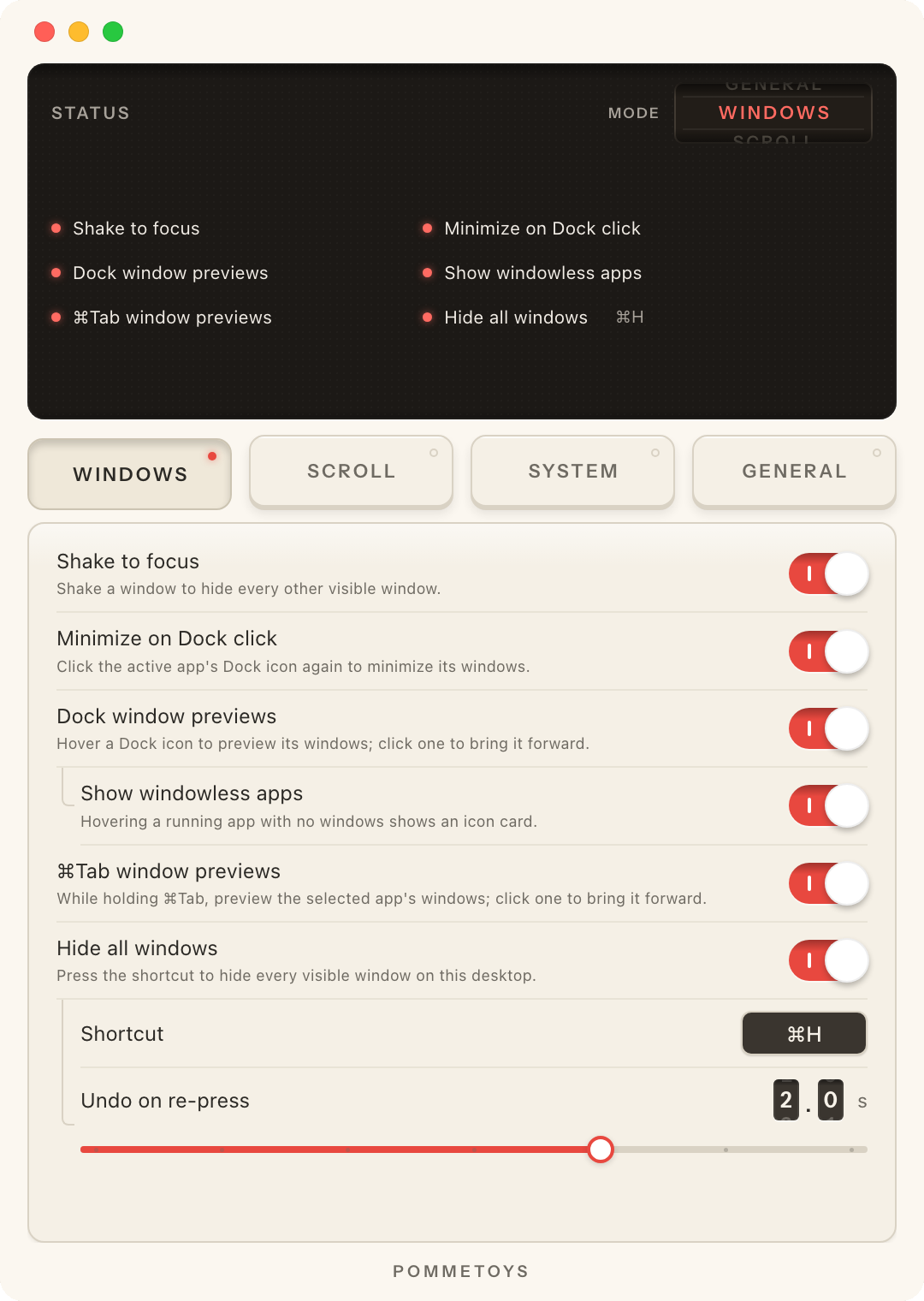
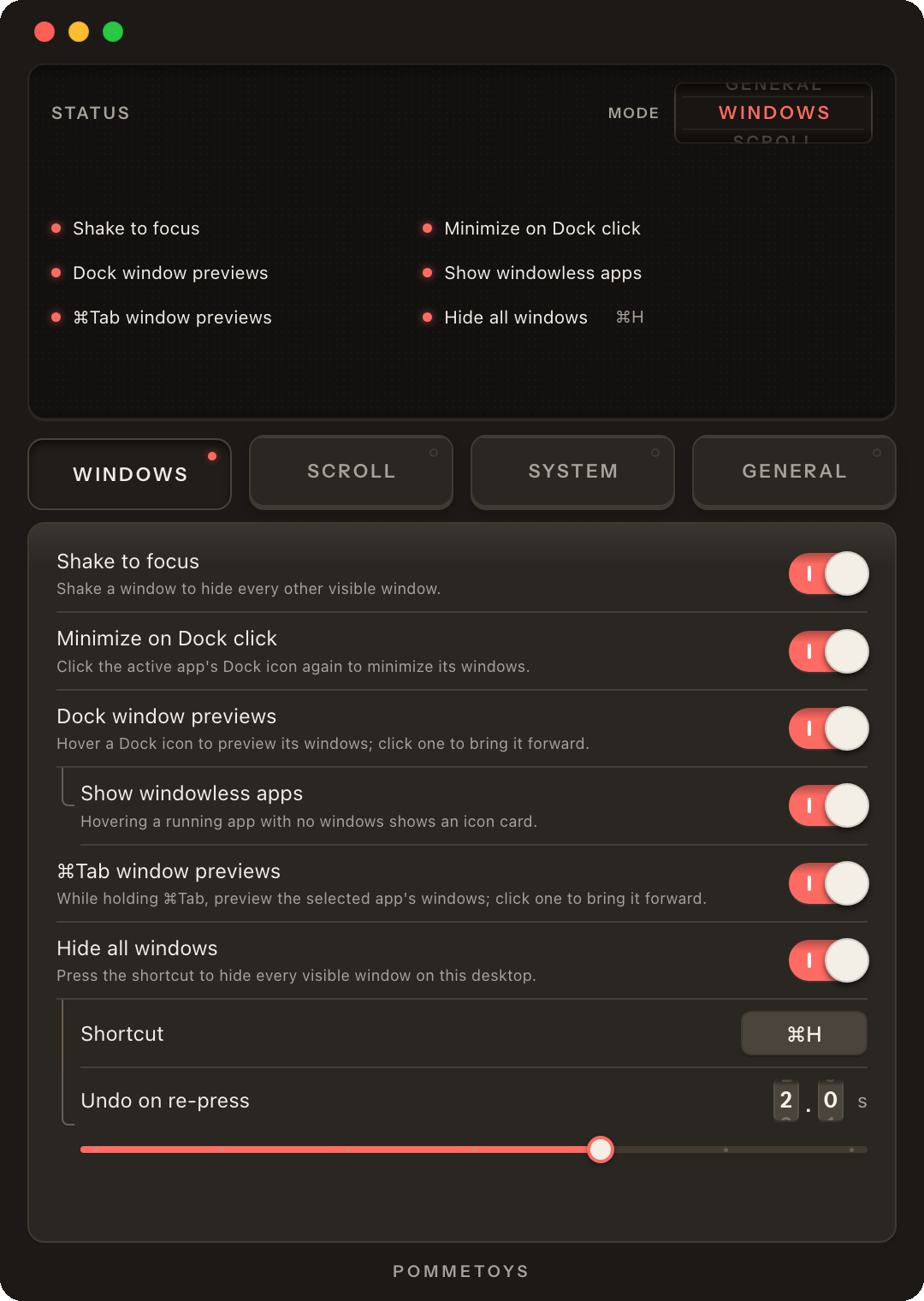
The four mode keys are keycaps that actually sink when you press them, and the selected one has a red LED lit. When you switch modes, a drum in the corner of the screen rolls over like an old odometer, overshoots a little, and makes a rolling sound.
The switches are toggles marked with the I/O power symbol, and they click when you flip them.
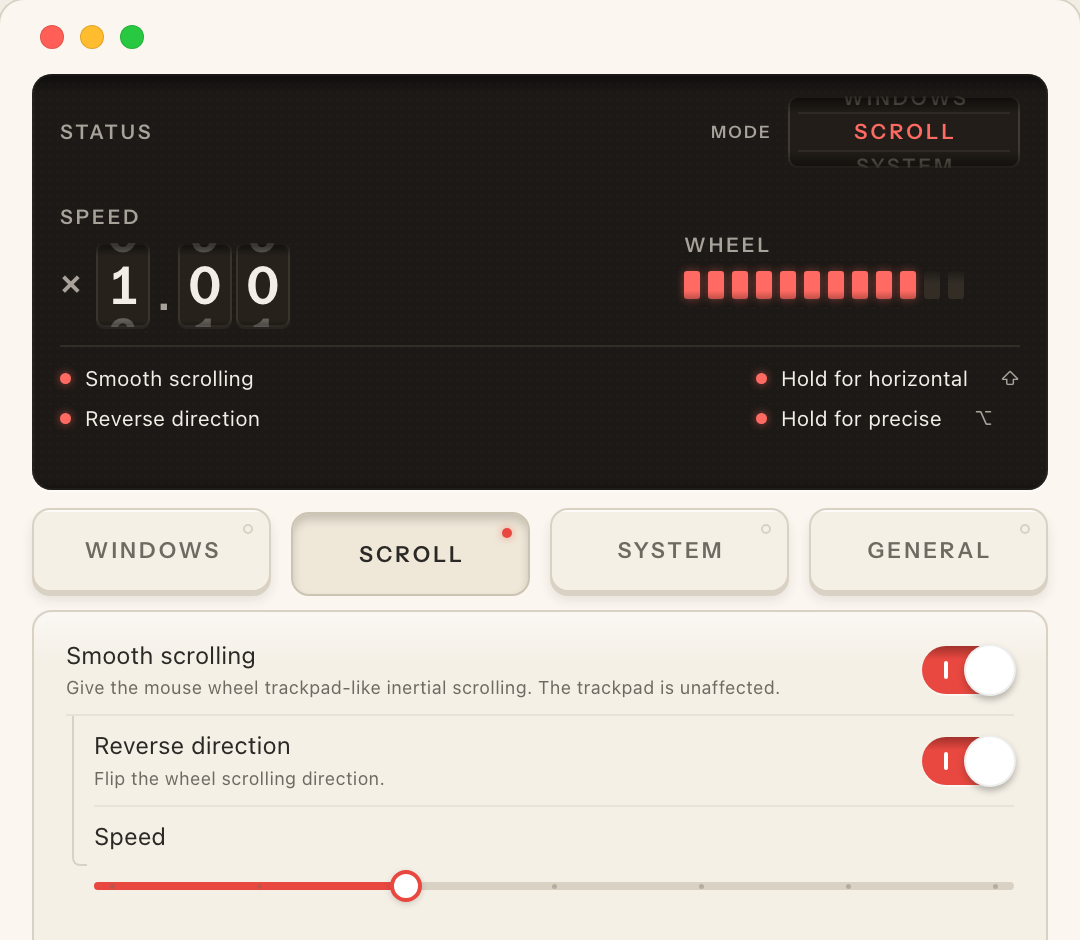
Scroll speed is set with a fader, and odometer-style digits on the screen roll as you drag it. The screen also has a 12-segment LED level meter that moves with your scroll wheel in real time.
There are two sets of interface sounds, chosen with a three-position knob marked 0, 1 and 2. At 0 it is silent. I think being able to turn the sounds off matters as much as having two sets of them. Otherwise they would just be a gimmick forced on people.

The body follows your system appearance, cream in the day and graphite at night. The silkscreen on it (POWER, I/O, POMMETOYS) stays in English in every language, like the nameplate on a real device, while the labels you read follow the interface language. There are seven languages.
What this does for you
Apart from looks, I think it helps in three ways.
First, you can see the state of things. Whether each feature is on, whether permissions are granted and which version you have are all on the screen as lights and markings, so you do not have to dig through menus. The level meter shows you the scroll engine at work.
Second, you tune the feel by hand instead of typing numbers. Speed is a fader with a readout. You move it until it feels right, instead of trying 1.2, 1.3 and 1.4 in a text field.
Third, it is a signal. With closed-source software you cannot look inside, and the interface is the part you can see. If someone went this far on a settings window, the parts you cannot see were probably not rushed either. You do not have to accept that argument, but it is how I think about it.
The menu bar panel and the feedback fax
The menu bar panel and the feedback window follow the same idea.
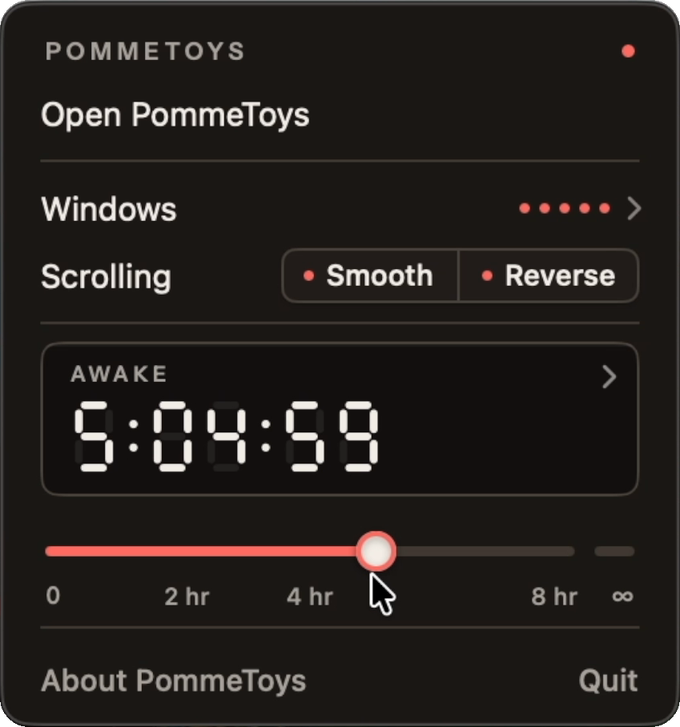
Click the menu bar icon and the panel has the same body as the settings window, so you can flip a few switches and set the Keep Awake duration without opening the main window. While Keep Awake is running, its row grows into a small seven-segment display counting down. Turn it off and the row shrinks back to a line of text.
In-app feedback is a fax machine. You write on the paper and press Send, the screen goes through “Off hook → Dialing → Sending · page 1”, and then it prints a receipt with a reference number. Write to me with that number and I will delete the feedback.
Try it without downloading
The website has a 1:1 web version of the settings window. Its colors are copied value by value from the Swift source, and the sounds are the app’s original WAV files. The switches, knobs and faders all work and make sound. Click the page once to turn on audio, then turn the sound knob and the whole demo changes its voice.
The demo clip and the settings window screenshots above were taken from that web version (the Keep Awake and menu bar shots come from the app itself). You can check everything I described by playing with it there.
Who it’s for, and who it isn’t
If you want several of these features and would rather not run three or four separate utilities, it might suit you. If you are willing to pay for interface and feel, it does.
If you only want the features and do not care what the settings look like, a combination of free tools is the better deal, and I do not think you would be missing out.
It does not run on Intel Macs. It needs Apple silicon and macOS 15 or later.
It is closed-source commercial software. If open source is a requirement for you, the existing open-source tools are a better fit.
It is not on the Mac App Store, because some of the system permissions it needs are not allowed in the App Store sandbox. The download is signed with a Developer ID and notarized by Apple.
FAQ
How do I get window previews when I hover over the Dock on a Mac, like on Windows?
The built-in Dock cannot do it. Right-clicking an icon only shows a list of window names. In PommeToys, turn on “Dock window previews” and hovering over an icon shows thumbnails of all that app’s windows, minimized ones included. Click one to switch to it.
How do I keep a MacBook awake with the lid closed and no external display?
By default macOS goes to sleep when you close the lid, unless the Mac is connected to both power and an external display. In PommeToys, turn on “Stay awake with the lid closed” under Keep Awake and it stays awake with the lid closed and no display attached, so downloads, exports and AI agents like Claude Code or Codex keep running. The first time you turn it on, you approve PommeToys’ background item once in System Settings.
Why does my AI agent only capture a black screen after I close the lid?
Closing the lid turns off the built-in display, so an agent that works from screenshots only sees black. In PommeToys, “Keep the built-in display on with the lid closed” keeps the screen on with the lid shut, at the lowest brightness, and restores the brightness when you open the lid.
How do I get smooth scrolling with a mouse on a Mac?
macOS applies only light smoothing to a mouse wheel, so on the same Mac the trackpad scrolls smoothly while a mouse moves in steps. Smooth scrolling in PommeToys applies to the mouse only, with adjustable speed, glide and direction, and leaves the trackpad as it is.
Does PommeToys work on Intel Macs, and how is it sold?
It needs macOS 15 or later on an Apple silicon Mac. Intel Macs are not supported. You can try it free for 14 days and then buy it once. It is not a subscription, and one license covers 2 Macs.
Version, purchase and permissions
- Current version 1.2.0. macOS 15 or later, Apple silicon Macs.
- Needs two permissions, Accessibility and Screen Recording. Screen Recording is used to capture window images for the Dock and ⌘Tab previews.
- 14-day free trial with every feature. No account needed.
- One-time purchase, not a subscription.
- One license covers 2 Macs. On a new Mac, enter the same license; if both slots are taken, remove the old Mac from inside the app. There is no limit on how often.
- All 1.x updates are free. If there is ever a PommeToys 2, existing users upgrade at half price.
- Refunds within 14 days of purchase.
- No analytics, ads or accounts. Usage data stays on your Mac, and the trial and license checks only send a pseudonymous device identifier.
- Interface languages: English, Simplified Chinese, Traditional Chinese, Japanese, German, French and Spanish.